Troubleshooting
Start with the section that matches what you see. If something seems stuck, check whether it saved or sent before trying again.
A workout or logged set is not syncing
Section titled “A workout or logged set is not syncing”- Confirm that the phone has a working internet connection.
- Return to the active workout and leave it open briefly.
- Check whether the pending sets or workout changes have synced.
- If you used Apple Watch, keep it near the paired iPhone and open Cleanpull on the phone until the Watch sync finishes.
- Close and reopen Cleanpull once only if the screen remains stuck.
Do not uninstall the app or clear its cache while offline changes are pending; you could lose changes that have not synced yet.
The next workout is missing
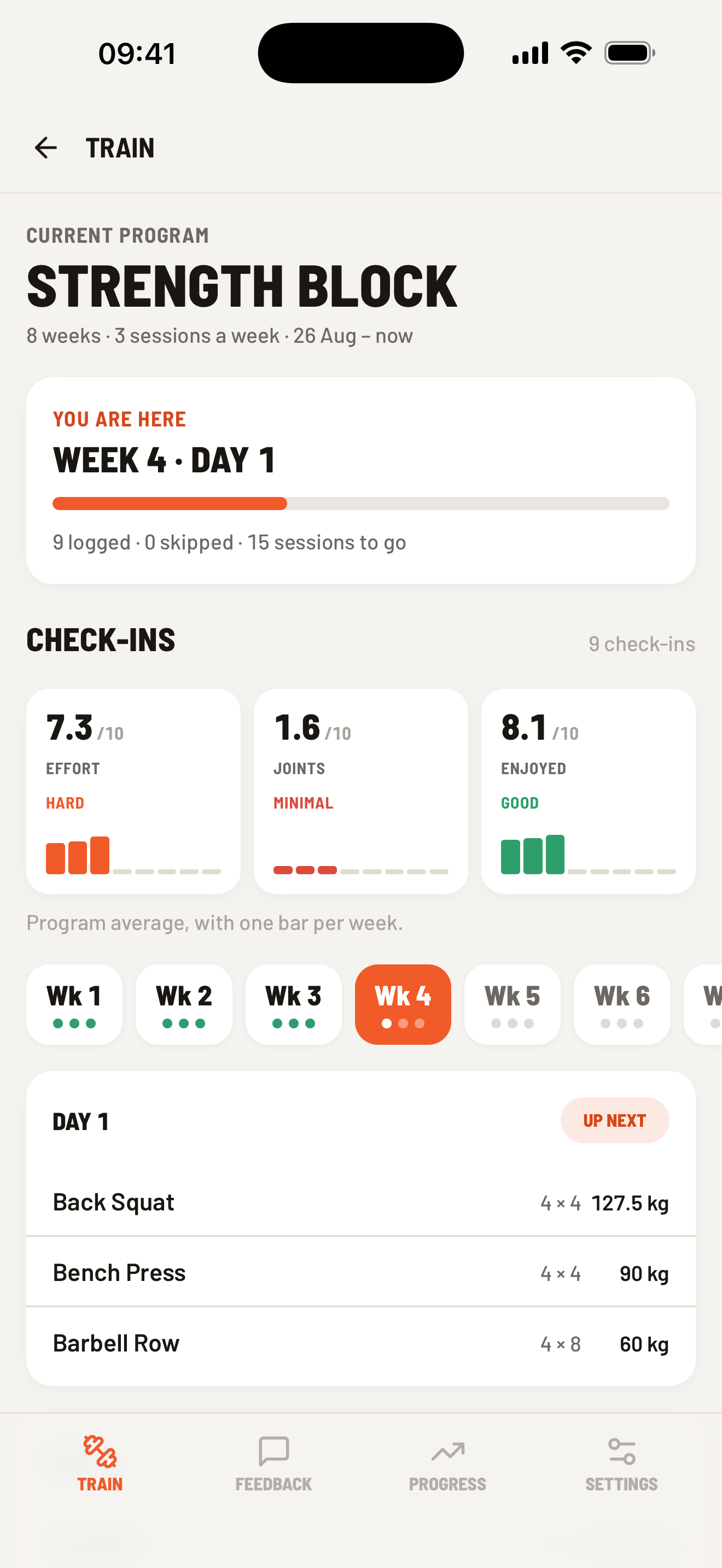
Section titled “The next workout is missing”- Open Train and check whether an earlier workout is still active.
- Open the current program to confirm your week and day.
- Ask your coach to open Roster → your name → Program and confirm that a program is assigned.
- If the program has ended, your coach must assign a new program or change your position in the current one.
An invitation does not work
Section titled “An invitation does not work”- Sign in with the exact email address that received the invitation.
- If the invite opens sign-in, complete sign-in and let Cleanpull return to the link.
- Ask the workspace owner to check Settings → Members. They can cancel a pending invitation and send a new one if the email is wrong.
- If the workspace is full, the owner must free a place or change the workspace plan before sending another invite.
You cannot sign in
Section titled “You cannot sign in”- Check the email address for typing errors.
- On the sign-in screen, choose Reset password to request a new link.
- A reset link can expire or be used only once; request another if Cleanpull says it is no longer valid.
- If your account is not verified, use Re-send email from the sign-in error and open the newest verification message.
Notifications are missing
Section titled “Notifications are missing”Notification controls are available in the iPhone and Android apps and in the coach web app. On iPad, notifications require the Home Screen web app; they do not work from an ordinary Safari tab.
- Open Settings → Notifications in Cleanpull.
- If Notifications shows Off, enable notifications. In the phone apps, you can also choose Open phone settings. On iPad, use iPad Settings → Notifications → Cleanpull if permission was blocked.
- Confirm the alert type you want is enabled.
- Coaches should also check whether the individual athlete conversation is muted.
A photo or video will not send
Section titled “A photo or video will not send”Keep the original photo or video on your device until the message appears in the conversation. Reconnect, reopen the conversation, and retry once. If you cannot choose a photo or video, check that Cleanpull has photo-library or camera permission in phone settings.
For a large video, wait for it to finish uploading before switching away from Cleanpull.
Health data is not appearing
Section titled “Health data is not appearing”- Body-weight sync works only in the iPhone or Android app.
- Open Settings → Apple Health or Settings → Health Connect and confirm Body-weight sync is on.
- Check that Cleanpull has permission to read body weight in Apple Health or Health Connect.
- Cleanpull imports readings from the last 12 weeks; older readings are not imported.
- Turning sync back on does not remove or duplicate readings already stored in Cleanpull.
Still stuck?
Section titled “Still stuck?”Email [email protected] with what you were trying to do, what happened, and any error message. Include your account email, workspace name, device, app and operating system versions, and roughly when it happened.
A screenshot or short recording can help. Check it for passwords, card details, or sensitive health information before sending. See Contact support for the full list of useful details.