Log a workout and review training history
Open Train to see your next workout. Completed workouts appear in your training history and are sent to your coach for review.
Start or resume a workout
Section titled “Start or resume a workout”Open Train and choose Start workout. Cleanpull opens the next day in your assigned program. If a workout is already active, Train resumes it rather than creating a second copy.
The workout shows the current exercise first, followed by the remaining exercises. The reps and weight start with your program’s targets. Adjust them to match what you did before logging the set.
Log sets and holds
Section titled “Log sets and holds”For a normal set:
- Adjust Reps and Weight if your completed set differs from the prescription.
- Choose Log set.
- Continue after the rest timer, or skip the timer when you are ready.
For a timed exercise, choose Hold timer, then Stop & log hold when you finish the hold.
For a complex, the exercise names and reps are joined together: for example, a clean and front squat with 1+2 means one clean followed by two front squats. Perform all the parts, then choose Log set once for the whole complex. Adjust the reps and weight before logging if your completed set differs from the prescription. A superset keeps a separate log button for each exercise.
To log a warm-up, enter the reps and weight or hold time, open the arrow beside Log set, and choose Warm-up. Warm-ups are numbered separately. They count toward your training volume, but not toward your prescribed sets, so logging one will not finish the exercise.
If your rest timer starts automatically, a warm-up starts a 30-second rest. Tap a warm-up to edit or delete it like any other set.
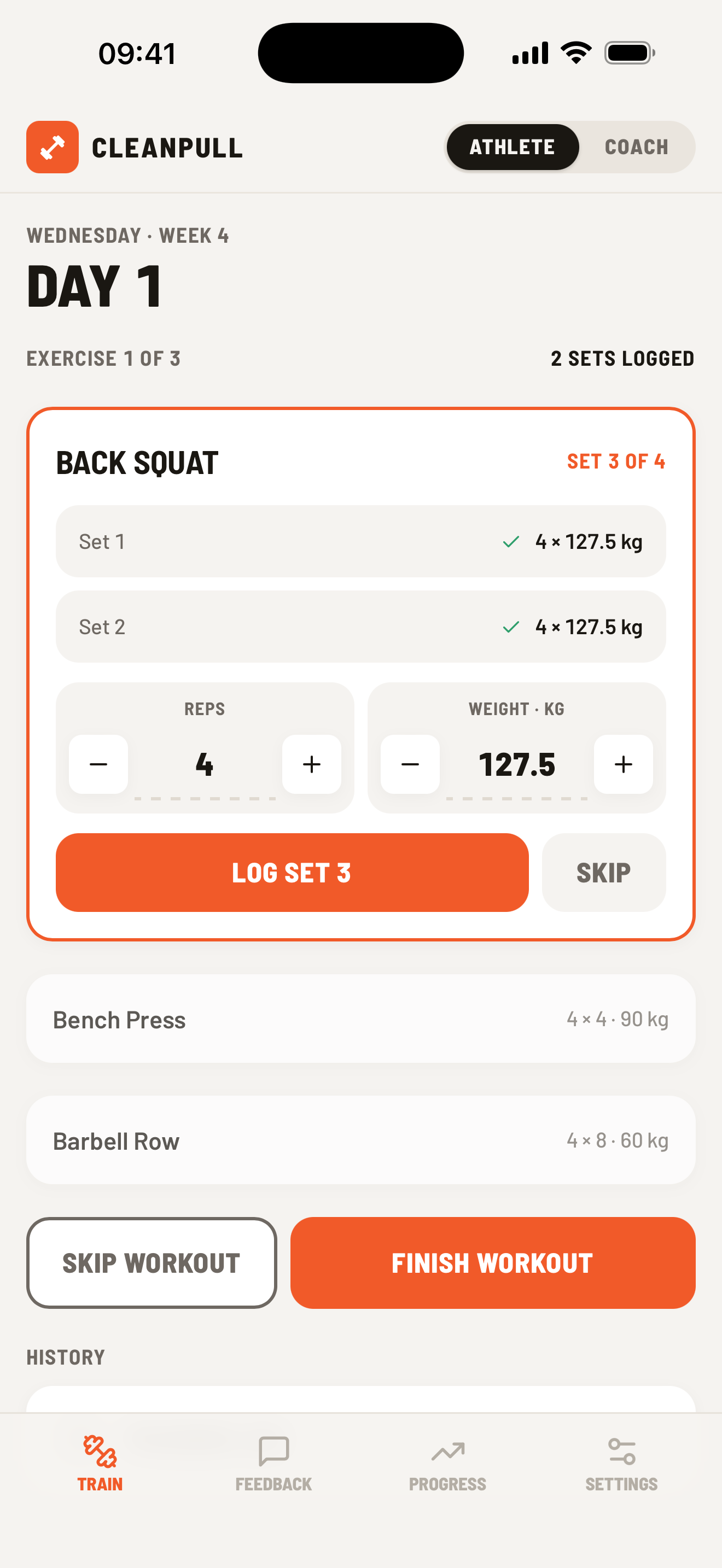
If you logged a set incorrectly, open that set to edit or delete it. You can also skip an exercise and reopen it before the workout is finished.
Set up the rest timer
Section titled “Set up the rest timer”Open Settings → General to choose your default rest time and whether the timer starts automatically after each logged set. During a workout, you can change or skip the current countdown without changing the default.
Turn on Adaptive rest timer to have the timer follow how long you actually rest. Adding time, skipping a rest, or logging the next set early changes the length of later rests in that workout.
The new rest time applies to every exercise, including those with a rest time set by your coach. It stays between 30 seconds and 5 minutes and resets after the workout. Warm-up rests and rests skipped in the first 10 seconds do not change it.
On a phone, Cleanpull can notify you when rest ends if notification permission and the Rest timer preference are enabled.
Finish or skip the workout
Section titled “Finish or skip the workout”Choose Finish workout after completing the workout. Cleanpull asks for confirmation if you have not logged any sets.
Choose Skip workout to stop the workout and mark the remaining work as skipped. If you plan to come back and finish, leave the workout open instead.
After finishing, complete the effort, joint soreness, and enjoyment check-in. Your coach sees it with the workout, and Cleanpull uses the effort and workout duration in training-load calculations. If you skip it, the workout summary on Train offers Add check-in for the rest of the day, except after the last workout of a program.
If you are tracking an injury, the check-in also asks how it is doing. If something new hurts, choose Hurt something? Track an injury in the workout summary. See Track injuries.
Review history and progress
Section titled “Review history and progress”Choose Training log from Train to see workouts in program order. Each finished day includes its logged exercises and post-workout check-in, or a note that no check-in was logged.
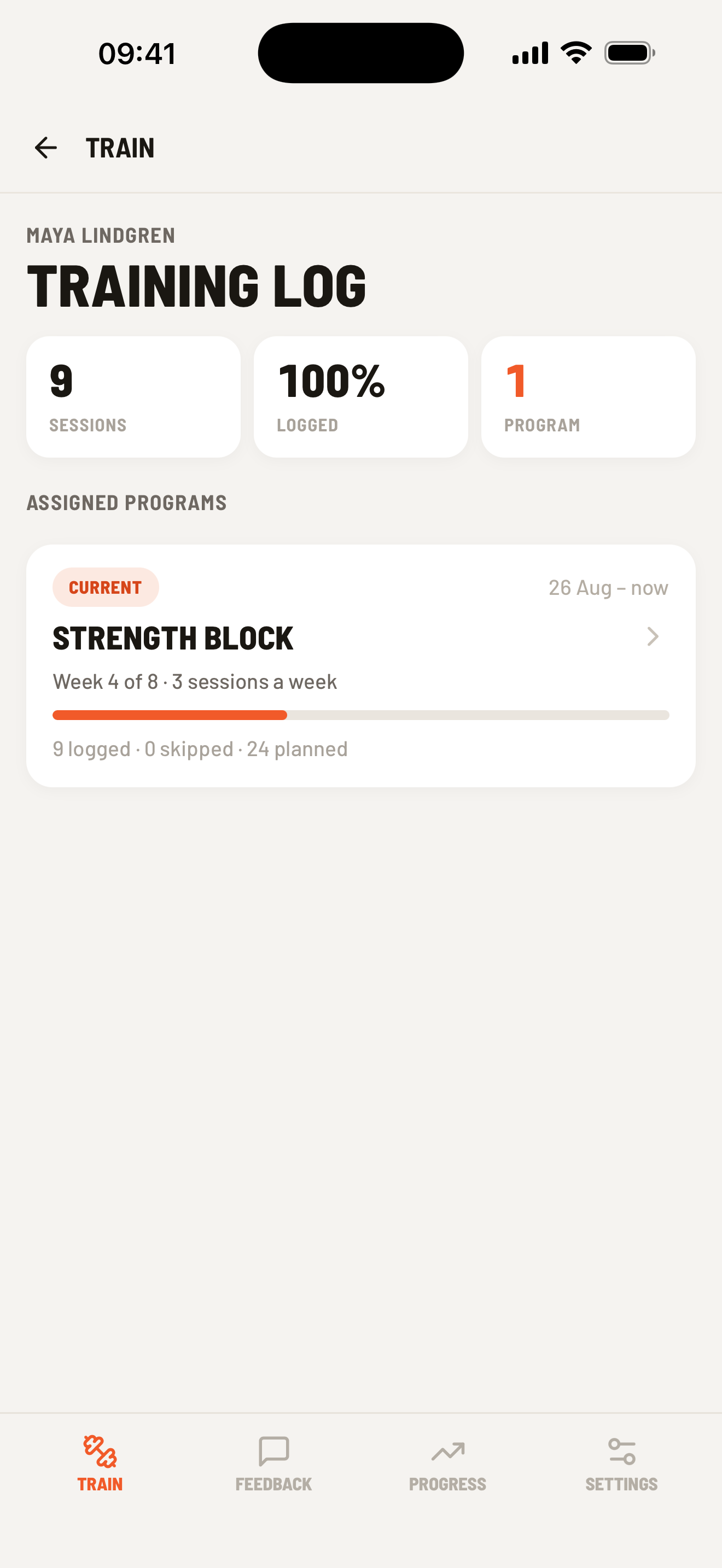
Open Progress for recent training load, workout frequency and duration, heaviest logged sets and manually entered maxes, and body-weight history.
You can add or edit a manual max from Progress → Maxes and record body weight with Weigh in.
Training while offline
Section titled “Training while offline”You can keep logging an active workout if you lose your internet connection. Cleanpull saves your changes on the device and syncs them when you reconnect. Do not uninstall the app or clear its cache before those changes have synced.
If the same set remains pending after the connection returns, leave the workout open for a moment, then follow Troubleshooting.