Getting started as a coach
Cleanpull keeps your roster, programs, completed workouts, and athlete conversations in one workspace. Follow these steps to set up your account and review your first athlete’s workout.
1. Create and verify your account
Section titled “1. Create and verify your account”- Choose Create account and enter your profile, email address, and password.
- Accept the Terms of Service and choose Continue.
- Open the verification email from Cleanpull and activate your account.
- If Cleanpull asks How do you use Cleanpull?, select Coach and choose Enter Cleanpull.
- Sign in when prompted.
You can coach and train with the same account, so you do not need a second account if you also follow your own program.
2. Create your first workspace
Section titled “2. Create your first workspace”The first time you enter Coach mode without a workspace, Cleanpull shows Start a workspace to coach. Choose Create a workspace.
Enter a workspace name your athletes will recognize, using at least six characters. Then choose Create Workspace. You become the owner, and Cleanpull opens the Getting started checklist for the new workspace. Cleanpull also emails you a link to the coach web app, which gives you more room to build programs on a laptop or tablet.
To create an additional workspace later, use the workspace switcher and choose Create workspace. In the phone app, the switcher is under Settings → Switch.
The Getting started checklist
Section titled “The Getting started checklist”The checklist has four steps: invite an athlete, create a program, assign a program, and review a workout. Each step is marked done when you do it. You can also mark a step done, or not done, yourself. The sections below explain each step.
Every coach in the workspace sees the same checklist. In the phone app it is at the top of Roster. On desktop it is at the bottom of the sidebar.
Choose Hide checklist when you no longer need it. Hiding it removes it for every coach in the workspace, and it does not come back.
3. Invite athletes
Section titled “3. Invite athletes”- In the phone app, go to Settings → Members and choose Invite Member. On desktop, open Roster and choose Invite to the workspace.
- Select Athlete, enter their email address, and choose Send Invite.
- Ask the athlete to open the invitation and sign in or create an account with that same email address.
The athlete appears on the roster as Invited until they accept. Pending invitations count toward your workspace’s member limit. If the address is wrong, select the pending member, cancel the invitation, and send a new one.
Choose Coach instead when inviting another coach. Coaches can program for and review every athlete in the workspace; athletes can see only their own training.
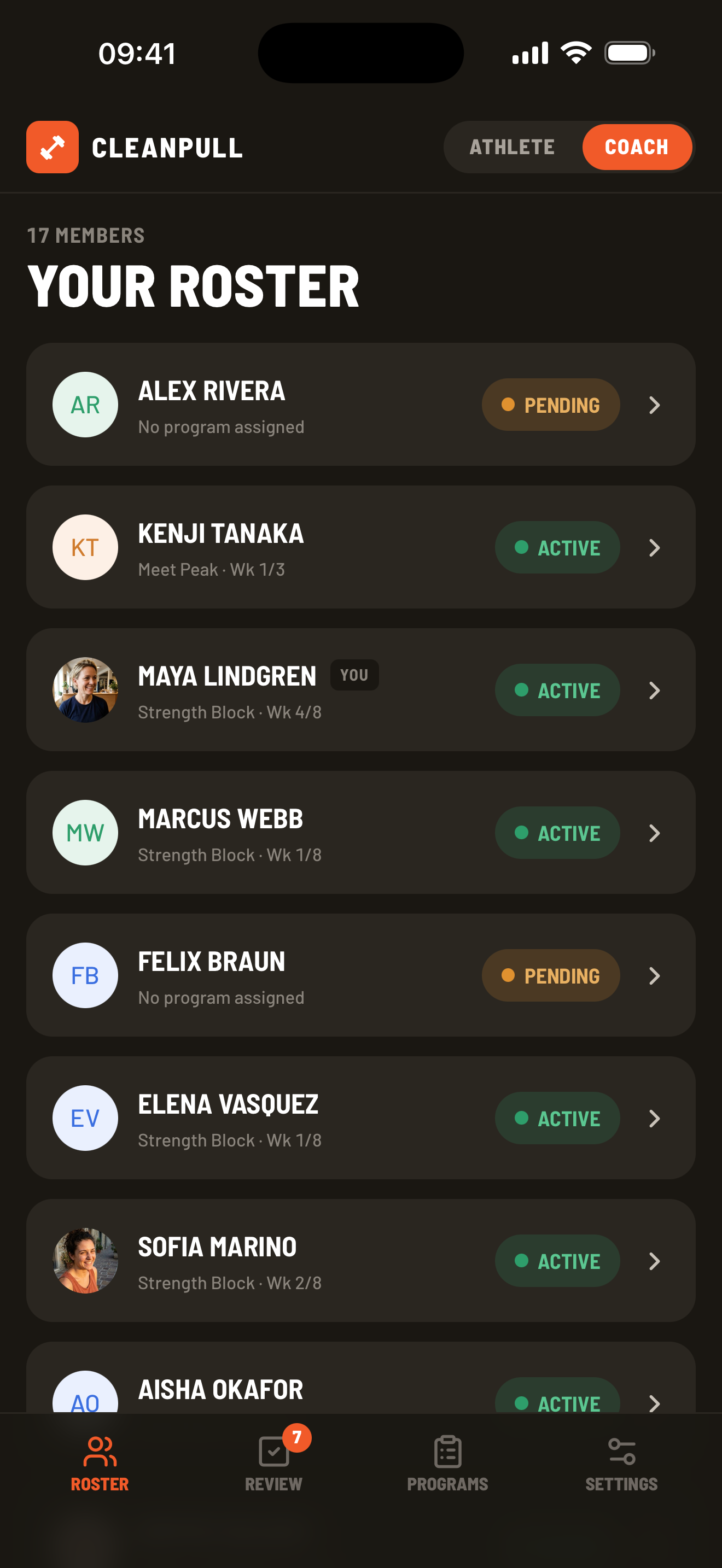
For resending, cancelling, role changes, and capacity limits, see Invite and manage members.
4. Build a program
Section titled “4. Build a program”Open Programs and choose New program, or start from a template. Set the duration and number of training days, add progression schemes, and add the exercises for each day. Choose Save program when the program is ready.
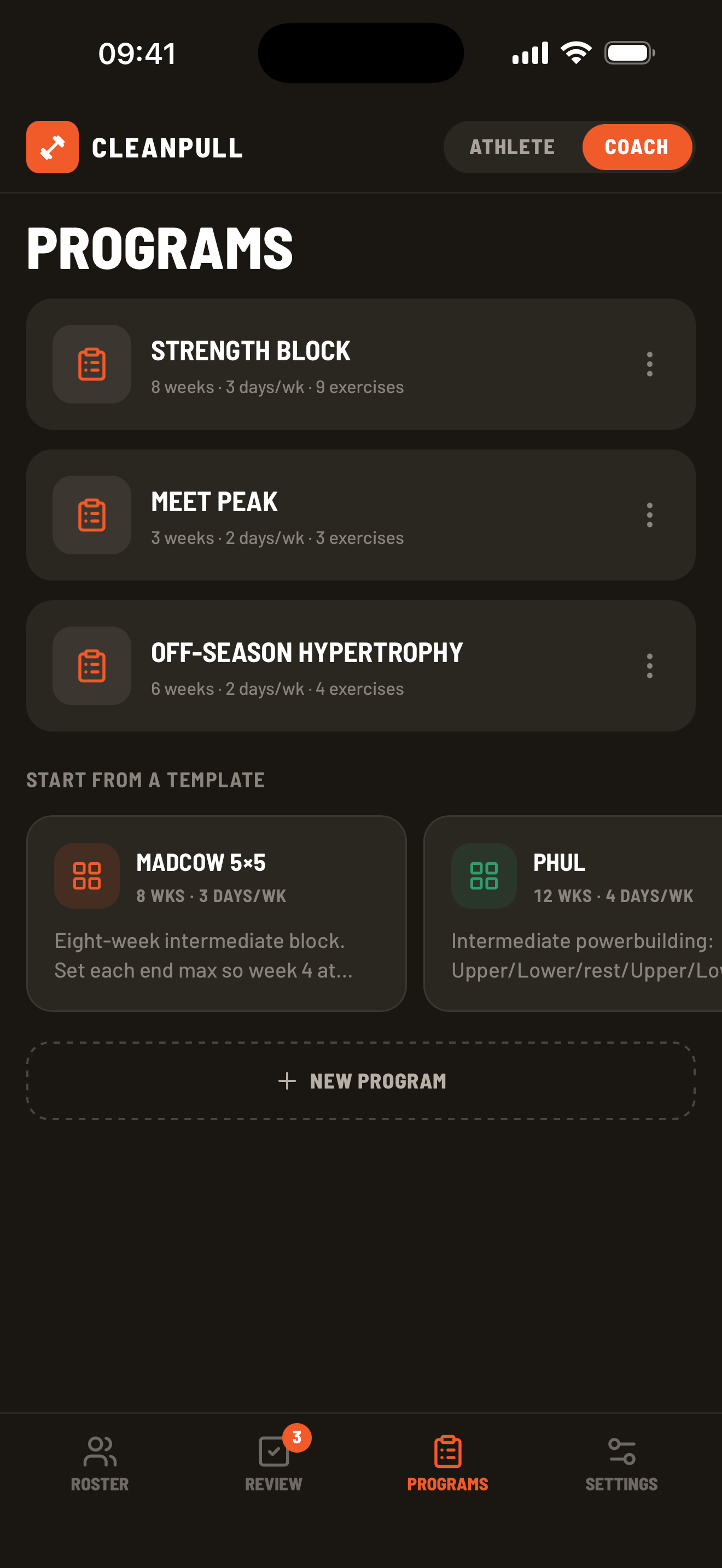
See Build and assign programs for progression schemes, exercise targets, duplication, and archiving.
5. Assign it to an athlete
Section titled “5. Assign it to an athlete”- Open the program’s menu and choose Assign to athlete.
- Select an athlete.
- Enter their target maxes. Cleanpull uses them with the program’s percentages to calculate working weights.
- Review the starting week and day, then choose Assign.
You can also open an athlete from Roster, open Program, and choose Change program.
6. Review training and reply
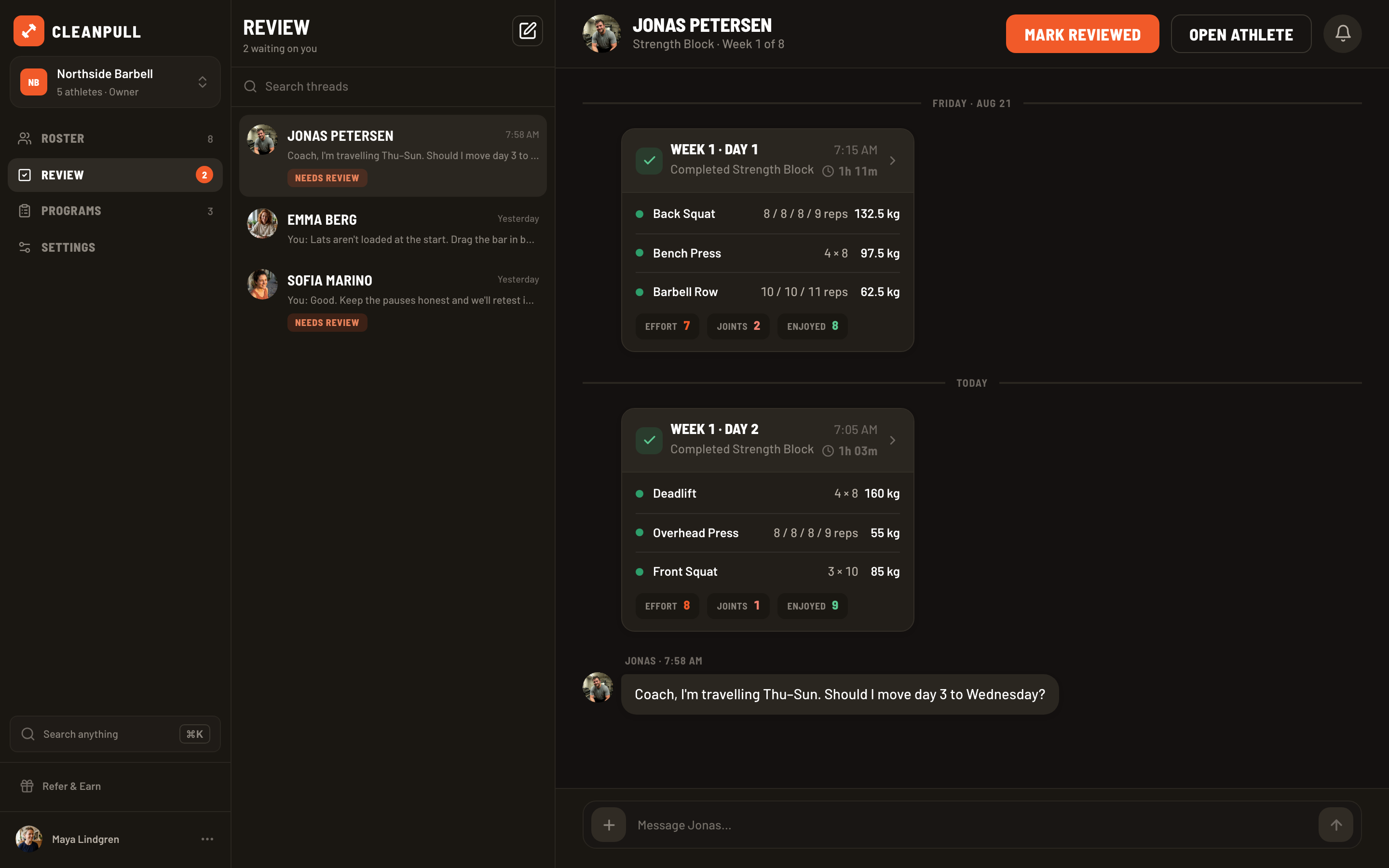
Section titled “6. Review training and reply”When an athlete finishes a workout, it appears under Review → Needs review. Open it to check the logged sets and the athlete’s effort, joint soreness, and enjoyment check-in. Mark it reviewed and continue into the athlete’s conversation to send feedback.
Completed workouts appear in the athlete’s conversation, where you can discuss them together.
Switch between coaching and training
Section titled “Switch between coaching and training”A coach can also be an athlete. Use the mode control at the top of the app to switch between Coach and Athlete without creating another account. Each mode remembers its active workspace.
Next, read Messages and feedback or Workspaces, members, and roles.