Workspaces, members, and roles
A workspace is the private area shared by its coaches and athletes. It holds your programs, athletes’ workouts, and coaching conversations.
Create a workspace
Section titled “Create a workspace”For a new coach account, enter Coach mode after verifying your email. When Cleanpull shows Start a workspace to coach, choose Create a workspace. On desktop, the workspace form may appear immediately after account verification.
Enter a recognizable name of at least six characters and choose Create Workspace. You become the owner. Cleanpull opens the roster or members screen so you can invite athletes and coaches.
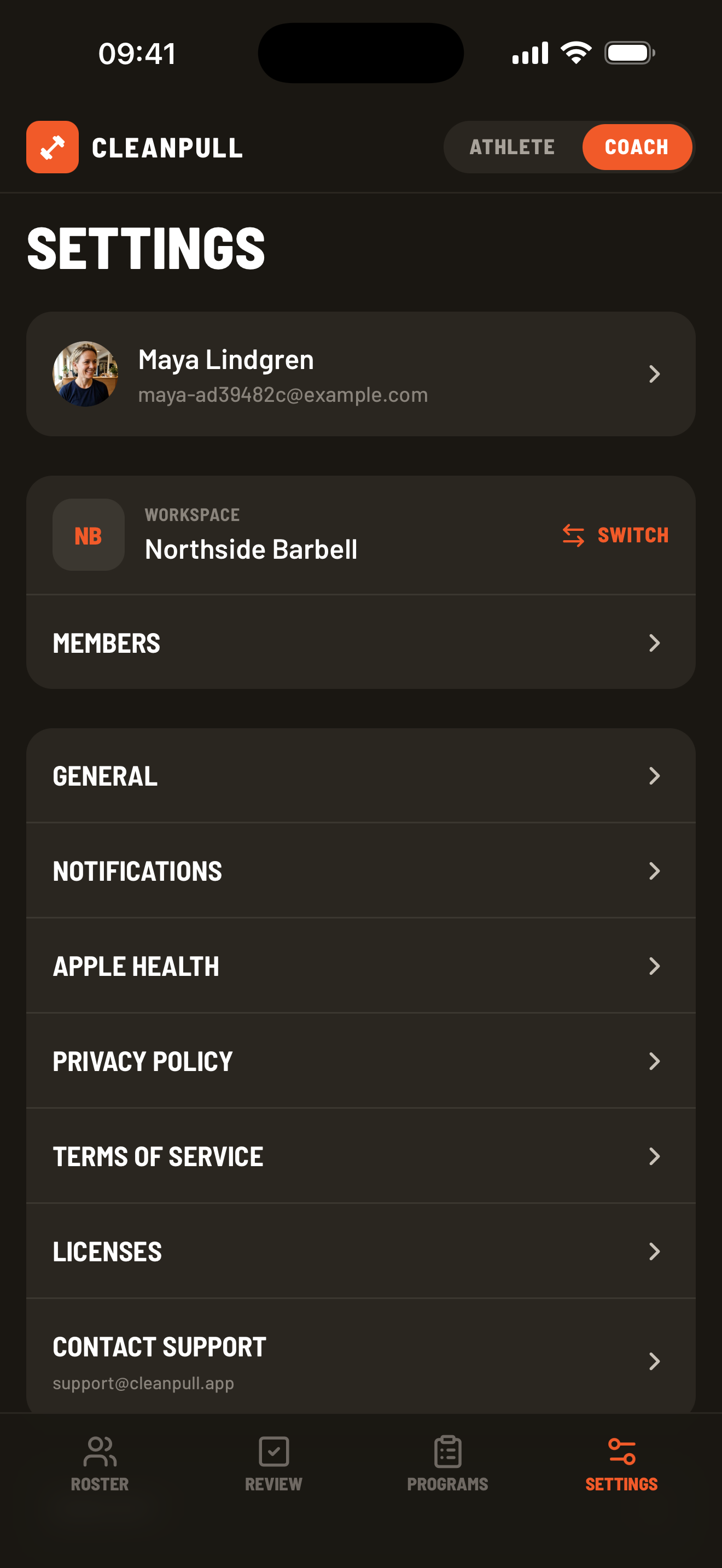
To create another workspace later, use the workspace switcher and choose Create workspace. In the phone app, the switcher is under Settings → Switch.
Invite athletes and coaches
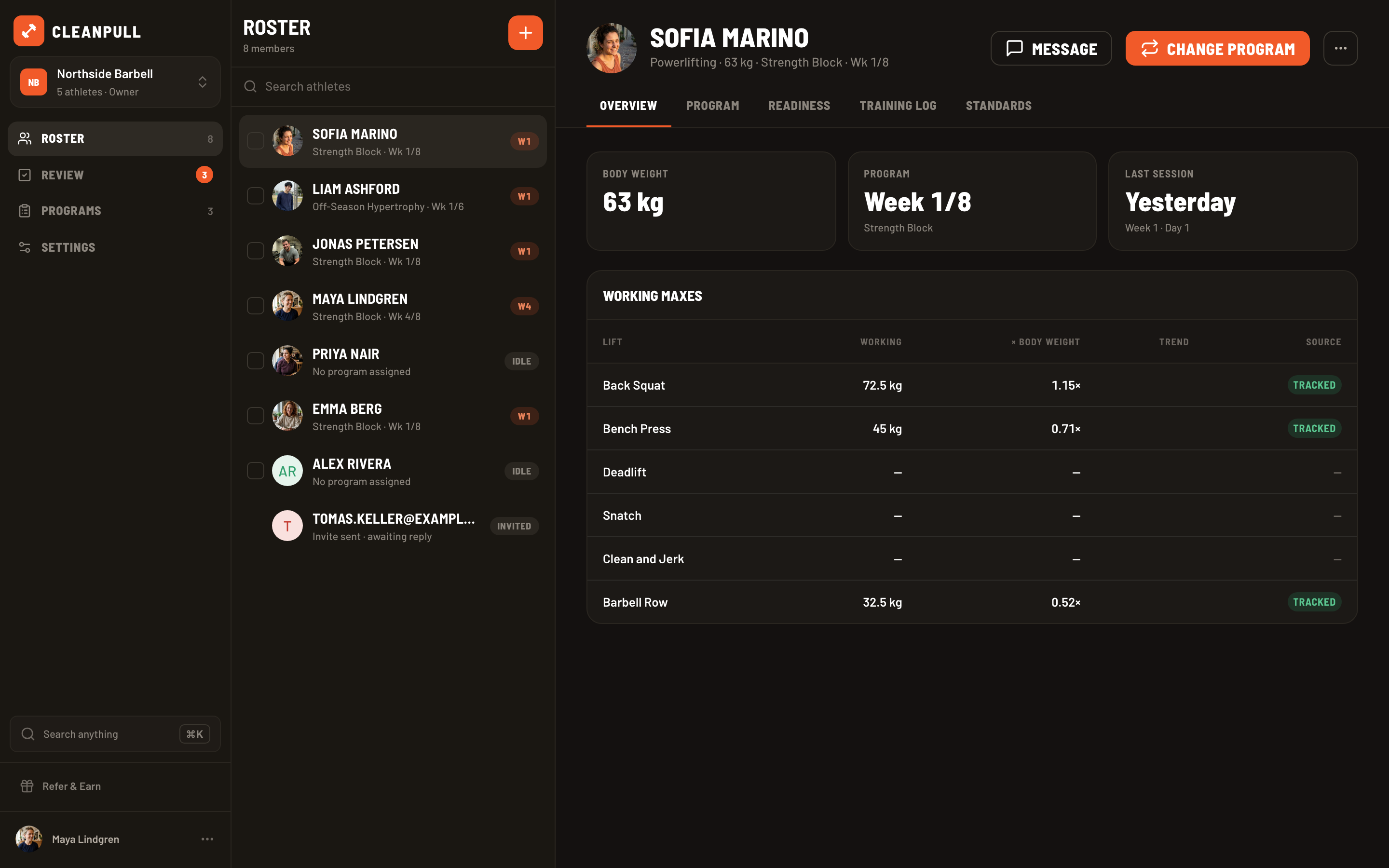
Section titled “Invite athletes and coaches”- In the phone app, open Settings → Members and choose Invite Member. On desktop, open Roster and choose Invite to the workspace.
- Select Athlete or Coach.
- Enter the person’s email address and choose Send Invite.
An athlete can access only their own training and shared coaching conversation. A coach can see the roster, create programs, review athlete training, and join athlete conversations.
The recipient opens the invitation and signs in or creates an account with the invited email address. The member appears on the roster as Invited until this is complete, and the pending invitation uses one workspace place.
Correct or cancel a pending invitation
Section titled “Correct or cancel a pending invitation”Open Settings → Members and select the pending member. Choose Cancel invite. Send a new invitation if the original address was incorrect. Cancelling frees up that member’s place.
If an athlete says the link takes them to sign-in, ask them to finish signing in with the invited address; Cleanpull returns them to the invitation afterward.
Manage an existing member
Section titled “Manage an existing member”Open Settings → Members, then select the member. Depending on their status, you can change between Athlete and Coach, change the athlete’s sport, or remove an active member from the workspace.
Changing a role changes what the member can access. Removing someone ends their access to workspace programs, training data, and conversations, so confirm that you selected the correct person.
Switch workspaces or modes
Section titled “Switch workspaces or modes”Open Settings and choose Switch on the workspace card to select another workspace. If you coach and train, you can also use the mode control at the top of the app to switch between Coach and Athlete.
Daily summary email
Section titled “Daily summary email”Every morning, Cleanpull emails the owner and coaches a summary of the day before. It lists everyone who finished or skipped a workout, everyone who has gone 2, 7, or 14 days without starting their next workout, athletes who joined the day before, and the athletes who sent a message. Athletes without a program are listed every morning, with how long ago they last trained, until you assign one. Coaches who train in the workspace are listed alongside the athletes. If nothing happened, no email is sent.
Only the owner can turn the email off, and that turns it off for every coach in the workspace. In the phone apps, switch to Coach mode and open Settings → Notifications. In the coach web app, open Settings → Workspace. Then turn off Daily summary email.
The email uses the owner’s time zone for both its delivery time and the day it covers.
Understand workspace capacity
Section titled “Understand workspace capacity”Active members and pending invitations both count toward the workspace’s member limit. The free workspace includes the owner plus three other active or invited members. Paid plans increase that limit; features are otherwise the same on every plan.
If a workspace is full, you cannot send new invitations. The owner can remove an inactive member, cancel a pending invitation, or open Billing on the web to choose a larger plan. Existing members keep access if a plan change temporarily leaves the workspace over capacity, but no new invitation can be sent until it is back within the limit.
Only accept invitations from a coach or athlete you recognize.