Intensity targets and timed holds
Cleanpull uses your program’s weekly percentages and each athlete’s targets to calculate their working weights and hold times. You can also set weights directly or let the athlete choose them.
From percentage to working load
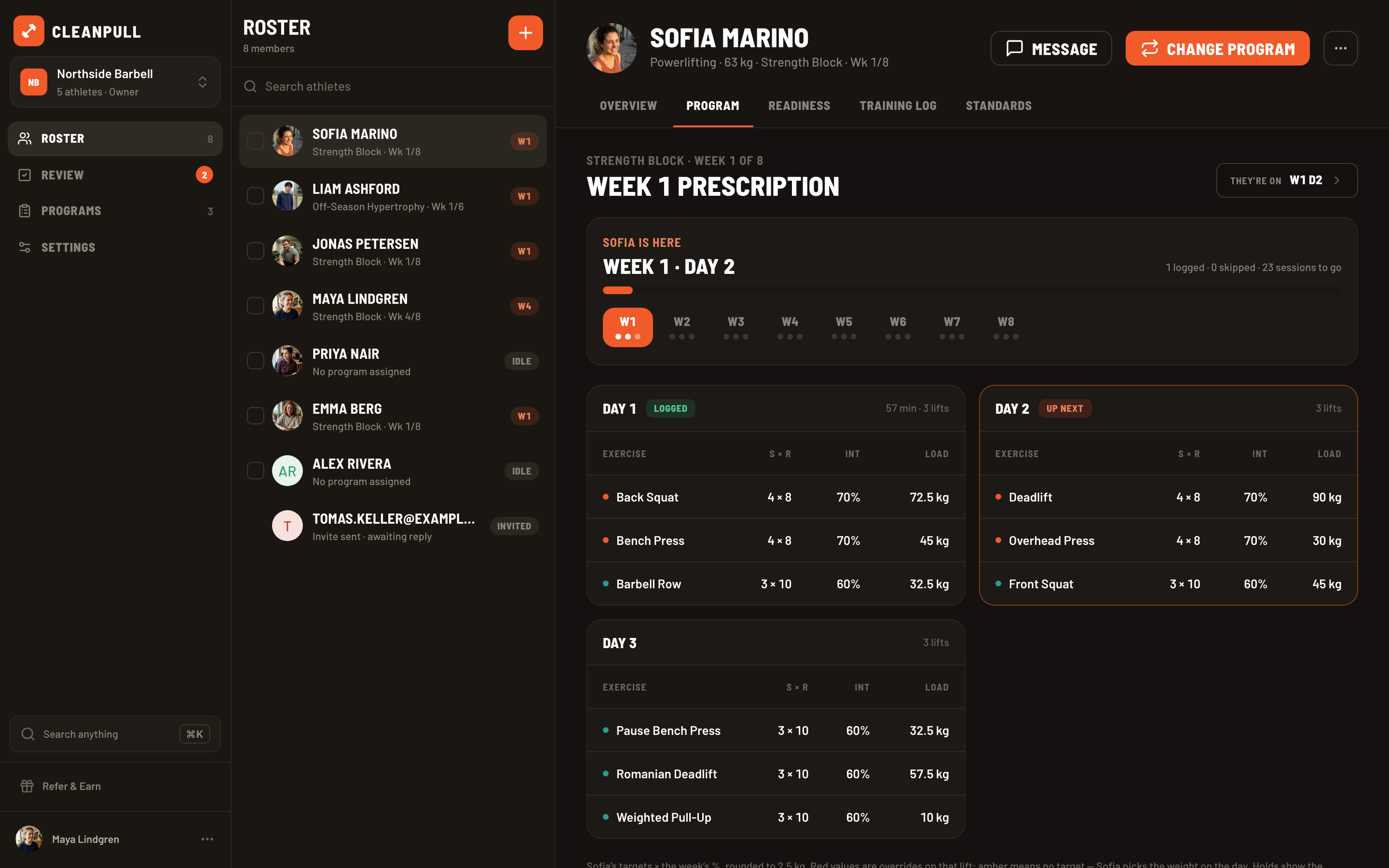
Section titled “From percentage to working load”For a weighted exercise, Cleanpull multiplies the athlete’s target by the week’s intensity percentage:
Working load = assignment target × weekly intensity
If the target is 150 kg and the week is 80%, the working load is 120 kg. Cleanpull rounds the weight to the increments below. The weight controls in the workout use the same increments:
| Equipment | Step |
|---|---|
| Barbells, dumbbells and plate-loaded machines | 2.5 kg / 5 lb |
| Selectorized machines and cables | 5 kg / 10 lb |
| Kettlebells | 4 kg / 5 lb |
| Weighted bodyweight work (dips, pull-ups, back extensions) | 1 kg / 2.5 lb |
Lighter dumbbells and kettlebells use smaller increments: dumbbells step by 1 kg below 10 kg (2.5 lb below 20 lb) and kettlebells by 2 kg below 12 kg (5 lb below 25 lb).
A target max is the weight Cleanpull uses as 100% for an exercise in an athlete’s program. It can start from an athlete’s current 1-rep max, but the coach can adjust it without changing the athlete’s recorded max.
Choose the weight used to calculate percentages
Section titled “Choose the weight used to calculate percentages”Open Target on a weighted exercise to choose which max or bodyweight its percentages use.
This lift
Section titled “This lift”This is the default. The percentage uses the athlete’s target or max for that exercise. For example, Back Squat uses their Back Squat target.
When you assign the program, Cleanpull fills in the target from a tracked, manual, or estimated max when one is available. You can accept it, edit it, or clear it.
Other lift
Section titled “Other lift”Use this for variations of a lift the athlete tests. For example, you can base Pause Bench Press weights on their Bench Press max.
Choose Other lift, then select the lift from the exercise library. Cleanpull fills in the target from that lift and shows which lift it uses in Projected loads. The athlete does not need a separate max for the variation.
Bodyweight
Section titled “Bodyweight”Use Bodyweight to calculate the weight as a percentage of the athlete’s body weight.
- 100% means bodyweight.
- Below 100% represents assisted or reduced total load.
- Above 100% represents added load; Cleanpull shows both the total weight and how much weight to add.
The athlete needs a bodyweight on their profile for Cleanpull to fill in and preview this target. You can still edit the assignment target afterward.
Assignment targets are optional
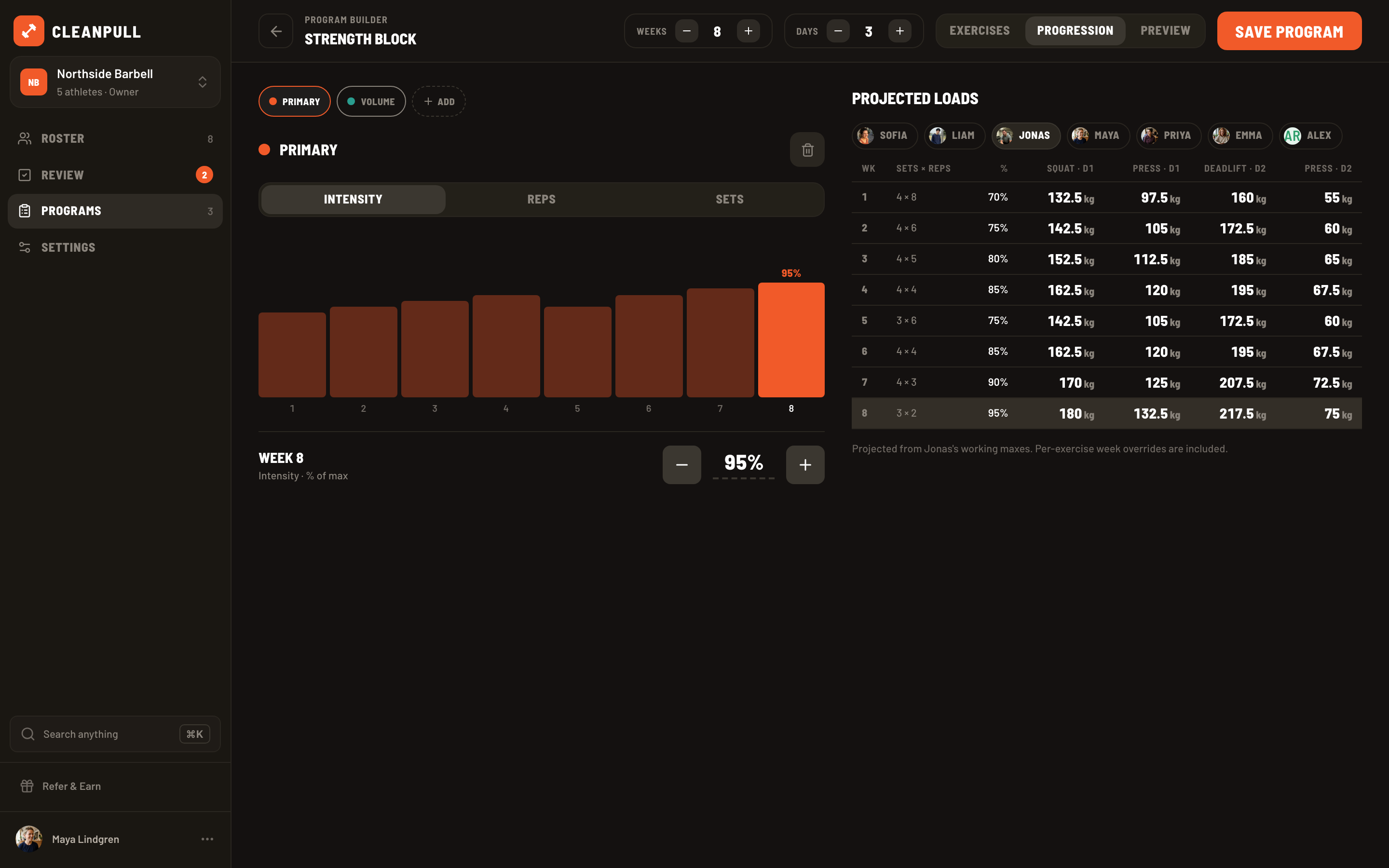
Section titled “Assignment targets are optional”The builder can use an athlete’s maxes to preview a program before it is assigned. When you assign it, the values you save on the Targets screen determine that athlete’s working weights and hold times.
- Keep the suggested target to calculate weights from the athlete’s existing max or bodyweight.
- Edit the target max to change the loads for that assignment.
- Clear the target when the athlete should select the load on the day.
- Apply to other slots to copy a target when the same lift appears more than once.
With no target, the athlete enters their own working weight. Cleanpull can use that weight as the starting value in the next workout.
Program targets
Section titled “Program targets”A program target is a max or bodyweight you save for one athlete in the program builder. It does not change their recorded max or body weight. Use it when they have no max recorded, or when you want this program to use a different value.
Set a program target
Section titled “Set a program target”- On the phone, open Projected loads or the Whole program preview and choose Set targets. On the web, find the targets panel on the Progression or Preview tab, or in an exercise’s panel.
- Find the lift you want to change. Each row shows the athlete’s recorded value. There is also a Bodyweight row if an exercise uses it.
- Choose Set target or Replace target and enter the value.
- Save the program.
A scheme’s panel lists only its lifts. The previews list all lifts, and an exercise’s panel shows just the target it uses.
The builder uses the program target instead of the athlete’s recorded max or body weight, unless their existing assignment has a different target (see below). Loads calculated from a program target have a dotted underline and a note below the table.
Program targets are copied when you duplicate a program. Templates start without any.
Assign a program with targets
Section titled “Assign a program with targets”When you assign the program, Cleanpull fills in its targets and labels them Program. A caption shows which recorded values they replace. You can change or clear these targets before assigning. Cleanpull keeps your changes for that athlete’s assignment without changing their recorded maxes or body weight.
Change targets for an athlete already using the program
Section titled “Change targets for an athlete already using the program”Changing a program target does not automatically change an existing assignment. When you save, Cleanpull tells you if the athlete still has the old targets. Choose Update targets to update their assignment.
This replaces only the targets for lifts you changed, including any you had adjusted separately on the assignment. If you cleared a program target, the assignment goes back to the athlete’s max or body weight. Their current week and day stay the same.
If a saved program target differs from the athlete’s assignment target, the builder calculates weights from the assignment target so the preview matches their workouts. It shows the program target alongside it. Choose Replace target to use the program target on the assignment. While you are editing a target, the preview uses your unsaved value until you save.
Exercises that do not need a target
Section titled “Exercises that do not need a target”The Targets screen leaves out exercises set to Athlete, and exercises set to Weight or Duration with a value for every week. A note counts these exercises.
If you leave a week’s weight empty, that week uses the athlete’s target multiplied by the week’s percentage, so Cleanpull still asks for a target. See Choose where the load comes from.
RPE targets
Section titled “RPE targets”Add a Target RPE when you want the athlete to choose a weight based on effort. RPE means rating of perceived exertion: how hard a set feels. Cleanpull supports targets from 5 to 10 in half-point steps.
The athlete sees the RPE target when the exercise has no assigned weight. Use it for accessories, unfamiliar movements, or days when the athlete should adjust the weight to how they feel.
If you set both a weight target and an RPE, Cleanpull uses the weight target. Clear it if you want the athlete to follow RPE instead.
Timed holds
Section titled “Timed holds”Mark an exercise as time-based with the clock control, or choose a library movement tagged Hold. For a timed exercise:
- The assignment target is a duration in seconds, not a weight.
- Intensity sets the percentage of that duration to hold.
- Sets controls how many holds the athlete performs.
- Reps does not apply.
For example, a 45-second hold target at 80% gives a 36-second hold. At 120%, it produces 54 seconds.
Each timed exercise starts with a 45-second assignment target, which you can edit. Timed targets are kept separate from weight targets when you switch or reassign programs.
Week ranges and custom values
Section titled “Week ranges and custom values”Applies controls the first and last week in which an exercise appears. For example, you can use a tempo squat in weeks 1–4 and a pause squat in weeks 5–8 on the same training day.
An exercise normally follows the intensity, reps, and sets in its scheme. To make a weekly exception:
- Choose the pencil on the exercise.
- Open Progression.
- Select Intensity, Reps, or Sets.
- Select the week and change the value.
A custom value affects only that exercise and week. Cleanpull marks it with a teal dot in previews. Revert a week to use the scheme’s value again, or choose Reset to remove all custom values for the exercise.
On an exercise whose load comes from Weight or Duration, the Intensity tab is replaced by a Weight or Hold tab where you enter each week’s weight or hold time. In Projected loads, these values have a dotted underline. Custom percentages, reps, and sets still show the teal dot. Clear week empties one week so it uses the athlete’s target × that week’s percentage again.
Example strength program setup
Section titled “Example strength program setup”For a straightforward strength program:
- Create Primary, Secondary, and Accessory schemes.
- Set the weekly intensity, reps, and sets for each scheme.
- Choose a scheme for each exercise, then adjust individual weeks if needed.
- Use Other lift for variations such as paused or tempo versions of a tested lift.
- For accessories, leave the weight target blank and set an RPE so the athlete can choose the weight.
- Use timed exercises for planks, hangs, and other holds.
- Preview several athletes, including one with missing maxes, before saving.
Return to Build a program for the steps to create and assign a program.